How to record a meeting without a bot joining the call
Record a meeting without a bot joining, on a Mac, and still get a transcript with both sides labelled.
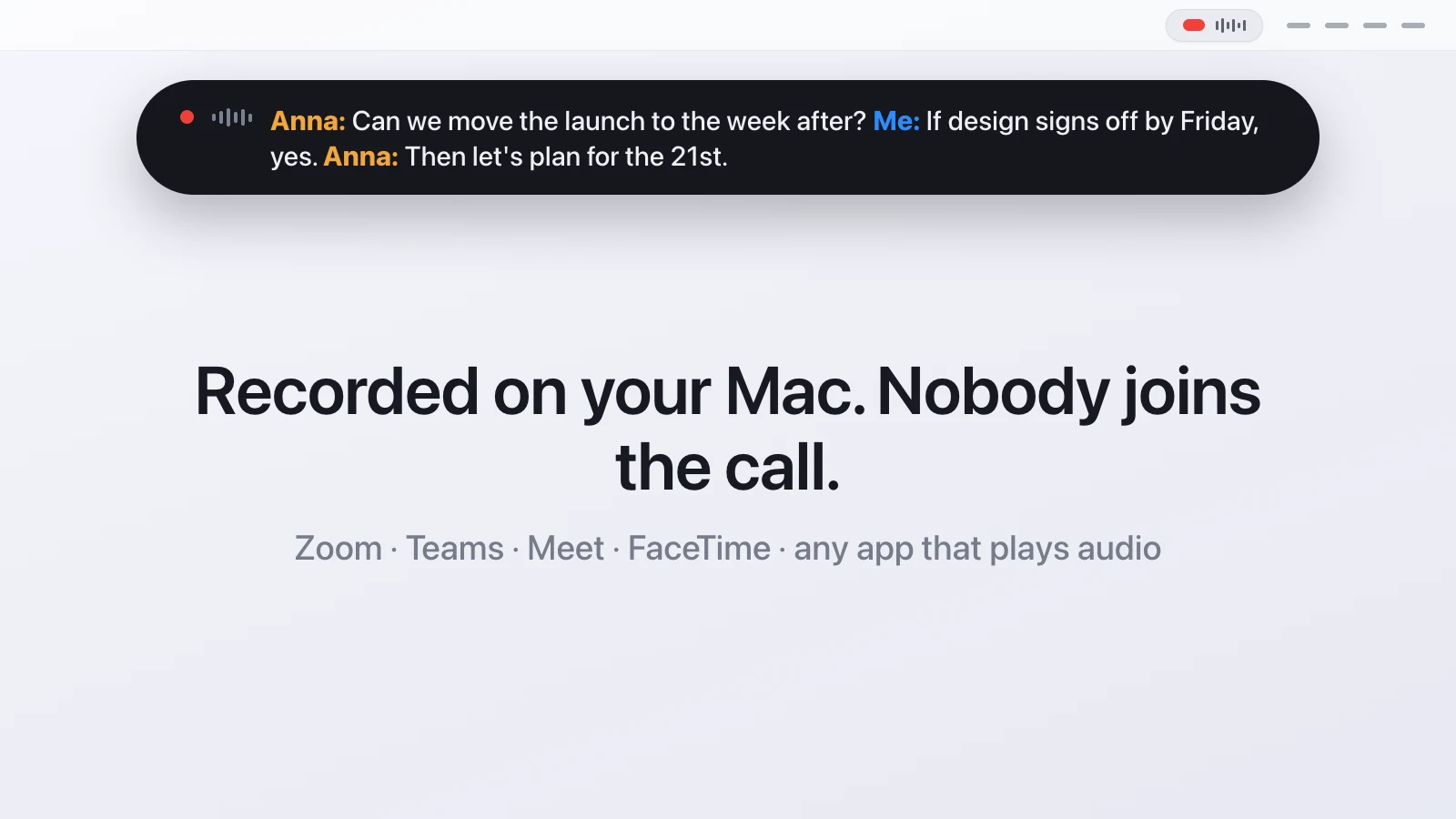
You can record a meeting without a bot by recording it on your own Mac. Transcriber captures your microphone and the sound the other participants make through your speakers, transcribes both locally, and writes the transcript while the call is still running. Nobody sees a "Recorder" tile, the host doesn't have to allow anything, and no audio leaves your computer.
Why do meeting tools use a bot at all?
A bot is the easiest way for a cloud service to hear a meeting. It joins as a participant, receives the audio, and sends it to a server for transcription. That's why it shows up in the attendee list, why the host sometimes has to admit it from the waiting room, and why some companies block them outright.
It has two side effects people dislike. A "Notetaker" tile changes the tone of a call, especially with clients or in a first conversation. And the recording lives with the service, so the transcript is on someone else's server under their retention policy.
How do you record without one?
You record the two audio streams that already reach your Mac. Your voice goes into the microphone, and everyone else's comes out of your speakers as system audio. Since macOS 14.2, Apple provides an audio tap that lets an app listen to what other apps play, after you grant permission once. Transcriber uses that tap for the far end and your normal microphone for your side, records both in parallel, and transcribes them on the Mac. The meeting app sees nothing change: it plays audio, it receives audio, and there is no extra participant.
The steps are short. You click the dot in the menu bar or press ⌃⌥⌘R, the dot turns red and expands into a small pill with a waveform and a timer, and a floating bar below the menu bar shows the transcript as it forms. When the meeting ends, you click the dot again and give the recording a title. The first time, macOS asks for Microphone and System Audio Recording permission, and the first recording downloads the transcription models, roughly a gigabyte, once.
Do you still get speakers separated?
Yes, and the two channels are the reason. Everything from your microphone is labelled with your name, everything from the system channel is the other side. After the call, a diarization step runs over that channel and splits it into Speaker 1, Speaker 2 and so on when several remote voices are detected. A bot gets speaker names for free from the meeting platform, and that is the one thing a local recording can't replicate: you get labels, not names, unless you edit them.
If you don't wear headphones, your microphone also hears the loudspeaker, so the far end would appear twice. Transcriber's echo gate uses the system channel as a reference, estimates delay and echo gain, and mutes the microphone frames that only contain the other side. Headphones remain the cleaner setup, the gate is for the calls where you forgot them.
What do you get at the end?
A folder per recording, named after the date and the title, in the transcripts folder you chose. Inside sits a readable Markdown transcript grouped by speaker with timestamps, and next to it a line-by-line JSON file that is written and flushed after every segment. If your Mac crashes mid-meeting, everything up to the last segment is already on disk, and Transcriber offers to finish the session on the next launch. JSON and SRT exports and the raw audio are optional.
From the title dialog you can also hand the transcript straight to an AI tool. Settings lets you pick Claude, ChatGPT, Perplexity or any Mac app, plus a prompt template. "Save & Open in Claude" puts the transcript on the clipboard, opens the tool with your prompt, and pastes it, so a summary or a to-do list is one Enter away. How that looks in practice is in the post on recording a Zoom call on a Mac.
Where does recording without a bot fall short?
You have to be in the meeting. A bot can attend on your behalf while you're somewhere else, a local recorder can't, because there is no audio on your Mac to record. If you regularly need transcripts of meetings you skip, a bot is the right tool and Transcriber is not.
Shared notes are another gap. A cloud service puts every transcript in a searchable workspace your whole team can open, while Transcriber writes files to a folder and leaves sharing to you and your sync tool. And the transcription runs on your hardware, so an Apple Silicon Mac is recommended and Windows or phones are out. The model is good but it is a model: names, product codes and heavy accents deserve a read-through before you send anything on.
Is it legal to record without telling anyone?
In many places it isn't. Germany's § 201 StGB makes recording a conversation without consent a crime, and other countries have similar rules. The absence of a bot removes the visual reminder, which makes it more important, not less, to say at the start that you're recording. Say the sentence, then press record.
Questions people ask
Will the other participants see that I'm recording?
Not from the software side. Transcriber records what your Mac plays and what your microphone hears, so nothing joins the meeting and no icon appears for anyone else. Tell them anyway, recording without consent is illegal in many places.
Does this work if I'm not the host?
Yes. Nothing on the meeting side has to be enabled or allowed. If audio reaches your speakers and your microphone, it can be recorded.
Which meeting apps does it work with?
Any app that plays audio on your Mac. Zoom, Teams, Google Meet, WhatsApp, FaceTime and calls in a browser all work the same way.
Does the audio go to a server for transcription?
No. Transcription runs on your Mac with a downloaded model. The only network access is the one-time model download and the daily update check against GitHub.
Can it record a meeting I'm not attending?
No. It records the audio on your Mac, so you have to be in the call. That's the price of not having a bot.
What Mac do I need?
macOS 14.2 or newer, because that's where the system audio tap arrived. An Apple Silicon Mac is recommended for the transcription models.
This article was written with the help of AI, based on how Transcriber actually works, and read and approved by Moritz before publishing.