Record a remote podcast interview on a Mac
Record a remote podcast interview on a Mac, capture both sides as separate channels, and get a local transcript without a cloud service.
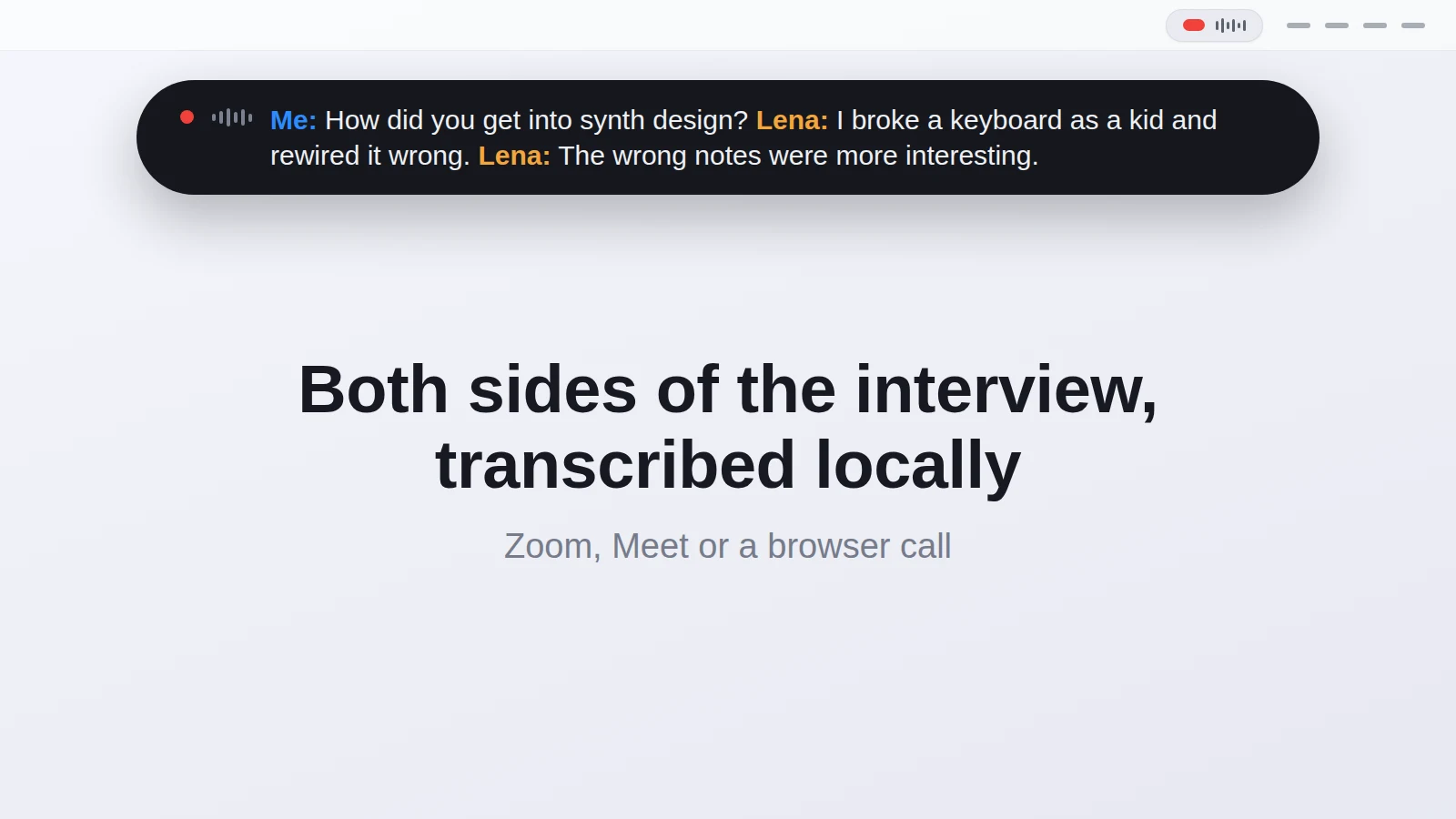
Recording a remote podcast interview on a Mac means capturing two people who are in different rooms: you on your microphone, and your guest coming through whatever app you're talking on. Transcriber records both at once, straight to your Mac, and writes a transcript while you talk, with your voice and the guest's kept on separate channels. It won't replace a proper rig for the audio you publish, but for the transcript, and for a complete backup of both sides, it does the job locally.
This post covers how the recording works for an interview, what you get afterwards, and the one thing it deliberately doesn't do.
How does it capture both sides of a remote interview?
Your guest's voice reaches your Mac as system audio, the same sound your speakers or headphones play. Your own voice goes through the microphone. The app records those as two channels in parallel, which is exactly the split you want for an interview: one track that is you, one track that is everyone on the far end.
It doesn't matter which app carries the call. Zoom, Meet, a browser tab, even a plain phone call routed through the Mac all play their audio the same way, so the recorder treats them alike. You start it from the menu bar or with the global shortcut, talk, and stop it when the interview ends. A floating bar shows the transcript forming, so you can see at a glance that both you and your guest are actually coming through before you get ten minutes in.
What do you get when the interview ends?
Each recording lands in its own folder named after the date and the title you give it. Inside is a readable Markdown transcript grouped by speaker, and a line-by-line JSON file that is written and flushed after every segment. That second file is the safety net: if the Mac crashes mid-interview, everything up to the last line is already saved, and it offers to finish the recording next time you launch.
If you keep the raw audio, you get two WAV files, one for your microphone and one for the system side. Because they're separate, you can hear each speaker on their own, which helps when you're editing the transcript or checking who said what. You can also export SRT if you want timed captions for a video cut of the episode.
Does it tell you apart from your guest, and from a second guest?
Yes. Your microphone channel is you, with the name you set once in settings. The far end is labelled by speaker, and after the interview a diarization pass runs over that channel and splits it into Speaker 1, Speaker 2 and so on when more than one voice was on the other end. So a two-guest conversation comes out with each guest on their own label, not merged into one blob. You can rename the speakers before the recording saves, or type their names live during the call from the floating bar.
For a fast back-and-forth, which interviews often are, there's an optional second pass (Settings › Transcription) that re-runs the recorded audio after the call in longer stretches. The live transcript has to recognise short pieces one at a time; the second pass hears whole minutes at once, so it reads better on quick exchanges. It finishes in under a minute for an hour-long recording.
What about the echo when you're not wearing headphones?
Wear headphones. That's the honest answer, and it matters more for an interview, because two people talking over each other is exactly when echo makes a transcript messy. If you don't wear them, your microphone also picks up your guest coming out of the speakers, so they'd appear twice. There's an echo gate that uses the system channel as a reference and mutes the microphone frames that only carry the far end, and it catches most of it. Headphones remain the cleaner setup, and for anything you might publish they're not optional anyway.
Where does this fall short for podcasters?
This is the important part. The app records the guest as they arrive on your end, which means through the call app's compression, at whatever the network delivered. The WAV files are 16 kHz mono, sized for transcription, not for publishing. Dedicated remote-recording tools like Riverside or Zencastr solve a different problem: each guest's own machine records a clean, full-quality local track and uploads it afterwards, so the final audio doesn't depend on the call quality at all. If you're producing an episode for release, use one of those, or your normal rig, for the sound.
What Transcriber gives you is the transcript, with both sides already separated, recorded locally and kept on your Mac. That's useful for show notes, chapter markers, pulling quotes, or handing the whole thing to an AI tool for a summary. Settings lets you point at Claude, ChatGPT or another app and open it with the transcript already pasted in, so you press Enter and ask for the notes.
Treat it as the notes-and-backup layer next to your real recording setup, not the recording setup itself. For the calls where you don't have a rig running, a pre-interview, a research chat, a client call you didn't plan to record, it's also just a complete local record of both sides. If you want the same approach for ordinary meetings rather than interviews, the no-bot meeting recording post covers that. You can download it here.
Questions people ask
Does my guest need to install anything?
No. It records the audio that reaches your Mac, so your guest just joins the call as usual on whatever app you both use.
Can I use the recorded audio to publish the episode?
Not really. The WAV files are 16 kHz mono, made for transcription. For release-quality audio, record with a dedicated podcast tool or your usual rig, and use this for the transcript.
Are the two sides kept separate?
Yes. Your microphone and the far end are recorded as two channels, and a second guest on the far end is split into separate speakers after the interview.
Does any audio leave my Mac?
No. Transcription runs locally on a downloaded model. The only network use is the one-time model download and the update check against GitHub.
Which macOS version do I need?
macOS 14.2 or newer, where Apple added the audio tap that makes recording another app's sound possible. Apple Silicon is recommended.
What if my Mac crashes during the interview?
The transcript is written and flushed after every segment, so everything up to the last line is on disk. On the next launch the app offers to finish the recording.
This article was written with the help of AI, based on how Transcriber actually works, and read and approved by Moritz before publishing.