Record a Teams meeting on a Mac and get a transcript
Record a Microsoft Teams meeting on a Mac locally and get a transcript of both sides, without waiting on an admin policy or a cloud upload.
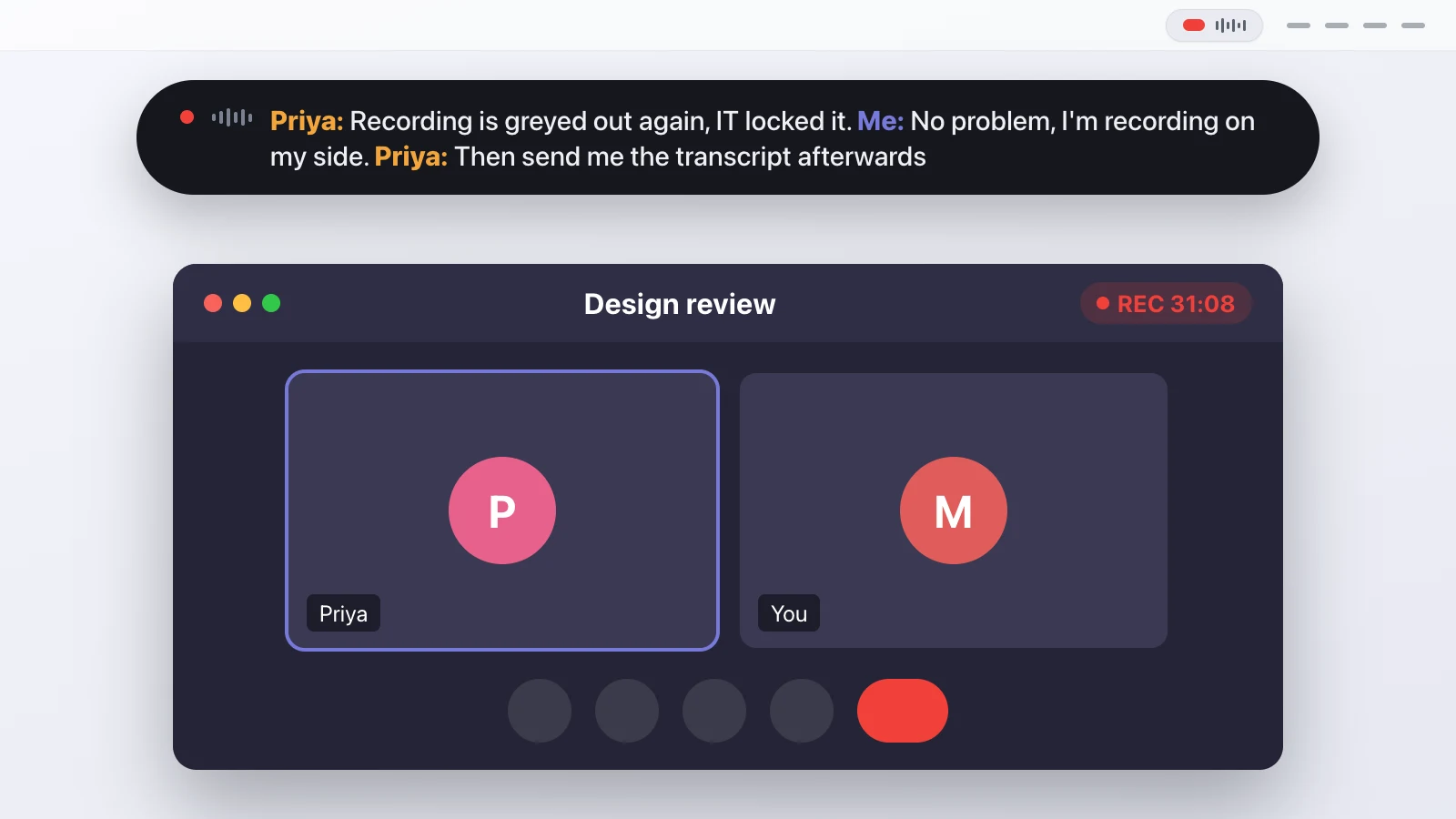
Recording a Microsoft Teams meeting on a Mac comes down to capturing two audio streams at once: your microphone, and the sound Teams sends to your speakers, which is everyone else. Teams has its own recording, but whether you can start it depends on a policy your admin controls, and the file lands in your organization's cloud. Transcriber records both sides locally instead, into a folder on your Mac, and writes the transcript while the meeting is still running.
This guide covers how that works with Teams specifically, the difference between the desktop app and Teams in a browser, and where the local approach isn't the right tool.
Why can't you always record in Teams itself?
Because Teams recording is a managed feature. In many organizations an admin decides who's allowed to record, and the button is greyed out or missing for everyone else. Even when it works, the recording and the transcript Teams makes save to your company's cloud under its account. For a personal record of a meeting you sat in, that's often the wrong place, and sometimes it's simply not available to you.
Recording on your own Mac sidesteps the policy. It doesn't ask Teams for anything; it listens to what your Mac plays and what your microphone hears. That also means it behaves the same whether you're the host, a guest, or dialed in from another organization.
Does it matter if you use the Teams app or Teams in a browser?
Not for the recording. Teams runs as a desktop app and also as a call inside a browser tab, and both play their audio through the Mac like any other program. The macOS audio tap that Transcriber uses catches that sound either way, so a meeting in the app and a meeting in Chrome or Safari are the same job.
The one thing worth knowing is which app is actually making the sound. Join in the browser and the audio comes from the browser; join in the desktop app and it comes from Teams. The system audio capture works across processes and rebuilds itself when the list of audio apps changes, which is why a meeting you open in the middle of a recording still gets picked up.
How do you record a Teams meeting?
You click the transcriber-icon in the menu bar, or press the global shortcut ⌃⌥⌘R, and that's the whole procedure. The icon turns red and grows into a small pill with a waveform and a timer, and a floating bar shows the transcript forming, so you can tell straight away that the other side is coming through. When the meeting ends you click the icon again, the app finishes transcribing, separates the speakers on the far end, and asks for a title that becomes the folder name.
The first time, macOS asks for two permissions, Microphone and System Audio Recording, both under System Settings, Privacy and Security. Both are needed: without the second one, everyone else in the meeting is missing from the transcript. The first recording also downloads the transcription models, roughly a gigabyte, which happens once.
This needs macOS 14.2 or newer, because that's the version where Apple added the audio tap. An Apple Silicon Mac is what I'd recommend, so the transcription keeps up with a long meeting.
What do you get at the end?
A folder named after the date and your title, inside the transcripts folder you chose. The readable file is transcript.md, grouped by speaker with timestamps and re-rendered after every segment. Next to it is transcript.jsonl, one JSON object per segment, written and flushed immediately, which is the crash-safe copy: if your Mac dies during a two-hour meeting, everything up to the last segment is already on disk, and the next launch offers to finish the session.
Your microphone channel is labelled with your name. The far end is split by the diarization step after the call into Speaker 1, Speaker 2 and so on when several people spoke, though it can't put real names to those labels, because nothing is telling it who is who in the meeting (not yet at least. I'm working on it!). You can keep the raw WAV files and export SRT or JSON if another tool needs them.
What about echo when you're not wearing headphones?
On speaker, your microphone also hears the meeting audio, so the far end would be transcribed twice. There's an echo gate for this. It uses the system channel as a reference, estimates the delay and how loud the echo is, and mutes microphone frames that only contain the other side, with a text-level check afterwards for anything that slips past. Headphones are still the cleaner setup;
Where does local recording fall short for Teams?
It records only the meetings you're actually in, from your own Mac. It doesn't join as a participant, so nobody sees a bot in the roster, but that also means it can't capture a meeting you didn't attend, and it won't pull in Teams' cloud recording or its attendance report. It runs on a Mac only. And the transcript is a machine transcript: names, acronyms and strong accents want a read-through before you lean on them.
If your team needs a shared, searchable record that lives with the meeting for everyone, the in-app recording or a cloud notetaker fits better, and you should use that. If you want a private transcript of the calls you're on without uploading the audio, this is the way I work. The same mechanics from the user's side are in the post on recording a Zoom call on a Mac, and you can see the whole tool at gettranscriber.com.
One part that isn't technical
Recording people without telling them is illegal in a lot of places, including Germany under § 201 StGB. This isn't legal advice, but the practical rule is short: say you're recording before you start, and in a Teams meeting that's one sentence at the top of the call. That's the part no software can do for you.
Questions people ask
Do I need permission from an admin to record a Teams meeting this way?
No. Recording on your own Mac doesn't use Teams' recording feature, so an admin policy that blocks the in-app button doesn't apply. Consent from the other participants is still your responsibility.
Does it work if I join Teams in a browser instead of the app?
Yes. Teams in a browser tab plays its audio through the Mac like any app, so the system audio tap captures it the same way it captures the desktop app.
Will everyone else in the meeting be transcribed too?
Yes. The far end comes in through your Mac's audio output as its own channel, so their words land in the transcript with separate speaker labels.
Does any audio leave my Mac?
No. Transcription runs locally with a downloaded model. The only network access is the one-time model download and the app's update check against GitHub.
Which macOS version do I need?
macOS 14.2 or newer, because that's where Apple added the audio tap that makes recording another app's sound possible. Apple Silicon is recommended.
This article was written with the help of AI, based on how Transcriber actually works, and read and approved by Moritz before publishing.