Record a Google Meet call on a Mac and get a transcript
Record a Google Meet call on your Mac, both sides included, and get a local transcript. No Workspace plan, and nothing joins the call.
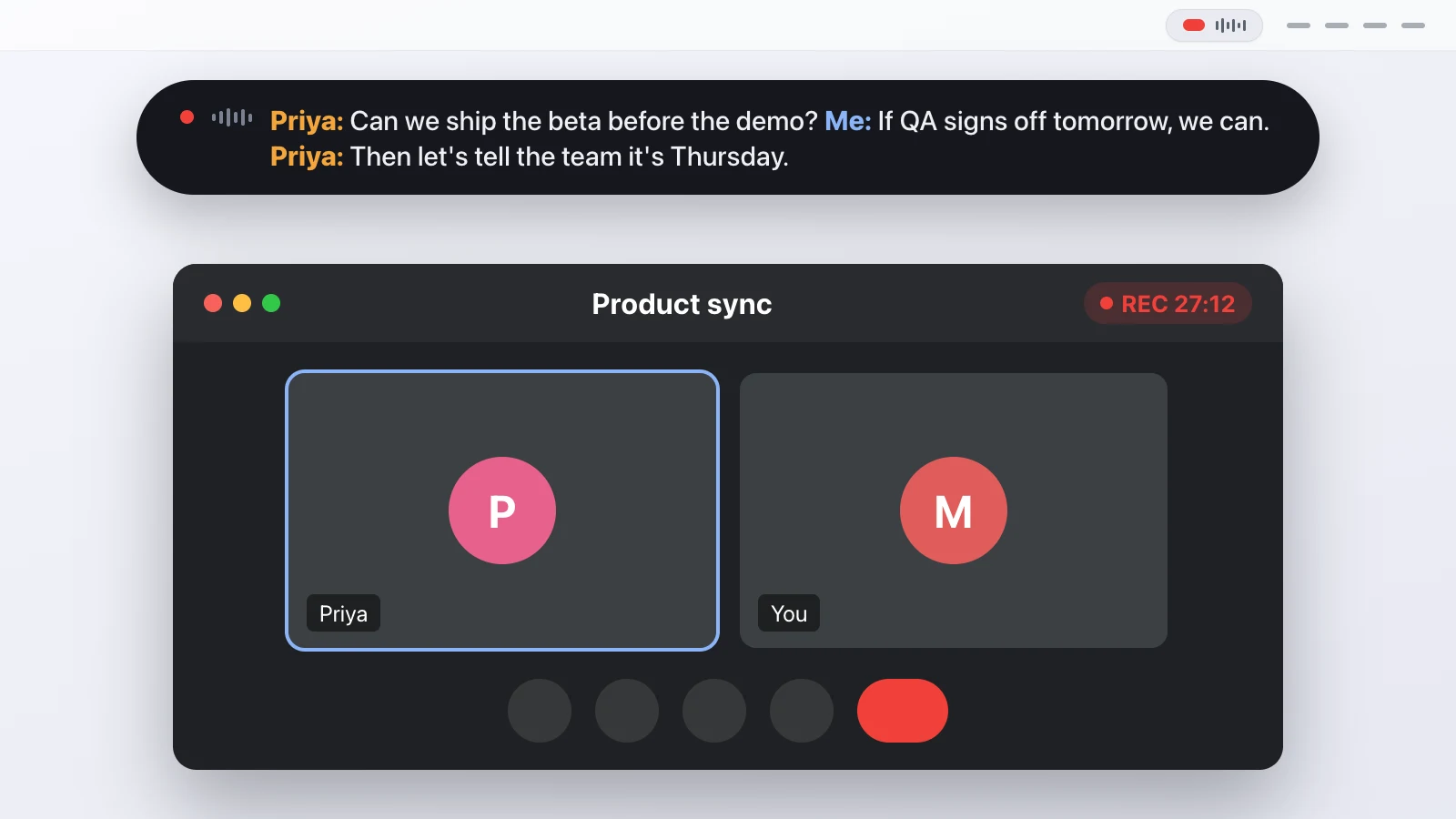
Recording a Google Meet call on a Mac means capturing two things at once: your own microphone and the sound the other people make, which Meet plays through your browser. Google Meet's built-in recording can do part of this, but only on a paid Workspace plan, and the file lands in the organizer's Google Drive. A local recorder does the same job on your machine: it captures both sides into a folder and writes the transcript while the call is still going.
This guide covers how that works with Meet specifically, what you end up with, and where the approach has limits.
Why doesn't the browser record the other side?
Because macOS treats the sound a browser plays as the browser's business, not something another app can grab. Your microphone is easy: any app can record it once you allow it. But the other participants in a Meet call are audio that Chrome or Safari sends to your speakers, and for years there was no clean way for a separate app to listen in. People bridged the gap with a virtual audio driver, and trust me, even for someone comfortable in a terminal that was a nightmare to set up, and it broke with every macOS update.
Since macOS 14.2, Apple provides an audio tap that lets an app listen to what other apps play, after you grant it permission once. Because Meet runs in a browser tab, its audio is just system audio like anything else the browser plays, so nothing about Meet needs special handling. Transcriber opens that tap for the system side and your normal microphone for your side. Two channels in parallel, which is also exactly what you need to tell speakers apart afterward.
Do you need a Workspace plan to record Meet?
Not for a local recording. Meet's own recording is a paid feature: as of September 2026, it's available on Business Standard and higher, and a free personal Google account or a Business Starter plan can't turn it on. That's fine if your organization pays for it and you're the organizer, but it doesn't help when you've joined someone else's call, or when the recording you want is your own private copy rather than a file in their Drive.
Recording the audio on your Mac sidesteps the plan question entirely. It doesn't ask Meet for anything, so it works the same whether the call is on a free account or an enterprise one, and whether you organized it or were invited.
How do you record the call?
You click the pill in the menu bar, or press the global shortcut Control-Option-Command-R, and that's the whole procedure. The pill turns red and pulses, and a floating bar below the menu bar shows the transcript as it forms, so you can see right away whether your microphone is picking you up and whether the other side is coming through.
The first time, macOS asks for two permissions: Microphone and System Audio Recording. Both are needed, and both are remembered as long as the app keeps the same code signature. The first recording also downloads the transcription models, roughly a gigabyte, which happens once. When the call ends you click the pill again, and after it finishes transcribing and separating the speakers it asks for a title. That title becomes the folder name.
What does the transcript look like?
Each recording is a folder named after the date and the title you gave it. Inside is a readable Markdown file grouped by speaker with timestamps, and next to it a line-by-line JSON file that's written and flushed after every segment. That second file is the safe one: if your Mac crashes in the middle of a long call, everything up to the last segment is already on disk, and you're offered the chance to finish the recording on the next launch.
Your own channel carries your name, and the other side is labelled by speaker. If several people were talking on the far end, the diarization step after the call splits them into Speaker 1, Speaker 2, and so on. You can rename those labels, keep the raw audio as WAV files, and export SRT or JSON if another tool needs them. For the full path from audio tap to transcript file, the post on how Transcriber works walks through each step.
What about echo when you don't wear headphones?
Without headphones your microphone hears the loudspeaker, so the far end would show up twice: once from the system channel and once, slightly delayed and muffled, from your mic. The echo gate handles this. It uses the system channel as a reference, estimates the delay and how loud the echo is, and mutes microphone frames that only contain the far end. A text-level check afterward drops any duplicate that slipped through. Headphones are still the cleaner setup; the gate is there for the calls where you forgot them.
Where does this approach fall short?
It's a recorder with a transcript, not a meeting assistant. It doesn't join the call, so no bot shows up in the participant list, but that also means it can't record a Meet call you're not actually in. It runs on a Mac, so it's no help on a phone or a Windows laptop. And the transcript is a machine transcript: names, product codes, and heavy accents will want a read-through.
If what you need is shared notes a whole team can search inside Google's ecosystem, Meet's own recording is the better fit, and the Workspace plan you'd pay for covers that. If you want a private, complete transcript of the Meet calls you're personally on, held on your Mac and sent nowhere, that's the job the local approach is built for. It's also the same way you'd record a Zoom call on a Mac, since to the audio tap one browser call looks like another.
Questions people ask
Do I need a paid Google Workspace plan to record a Meet call?
Not for a local recording. Meet's own recording is limited to paid Workspace editions (Business Standard and up, as of September 2026), but recording the call on your own Mac doesn't touch that at all.
Does recording work when Meet runs in a browser tab?
Yes. The other people's voices come out of your browser as system audio, and that's captured the same way whether Meet is in Chrome, Safari, or a standalone window.
Will the other participants be transcribed too?
Yes. The far end arrives through your Mac's audio output as its own channel, so their words land in the transcript with a separate speaker label from yours.
Does any audio leave my Mac?
No. Transcription runs on your machine with a downloaded model. The only network access is the one-time model download and the update check against GitHub.
Is it legal to record a Google Meet call?
It depends on where you and the other people are. In many places, including Germany under section 201 StGB, recording without consent is a crime. Tell everyone before you start.
This article was written with the help of AI, based on how Transcriber actually works, and read and approved by Moritz before publishing.